---
title: Image Lightbox Using Column Transform Value
description: "Users frequently want to import a table with an Image column from Google Sheets into **Ninja** **Tables**. When an image from that column is clicked, it opens in a lightbox with a darker background. There's already a \"[Lightbox](https://ninjatables.com/docs/image-file-lightbox/)\" data type…"
url: "https://www.ninjatables.com/docs/image-lightbox-using-column-transform-value/"
updated: "2025-06-02"
category: Advanced Mode (Classic Table Builder) / Customized Settings
---
# Image Lightbox Using Column Transform Value
Users frequently want to import a table with an Image column from Google Sheets into **Ninja** **Tables**. When an image from that column is clicked, it opens in a lightbox with a darker background.
There's already a "[Lightbox](https://ninjatables.com/docs/image-file-lightbox/)" data type option in Ninja Tables.
So apply this to your table by following this simple guide.
## Transform Image URL into Image Lightbox
A table from Google Sheets has been uploaded into Ninja Tables for demonstration purposes.
This table offers data about numerous car models. It is divided into two columns: **Name** and **Image**.
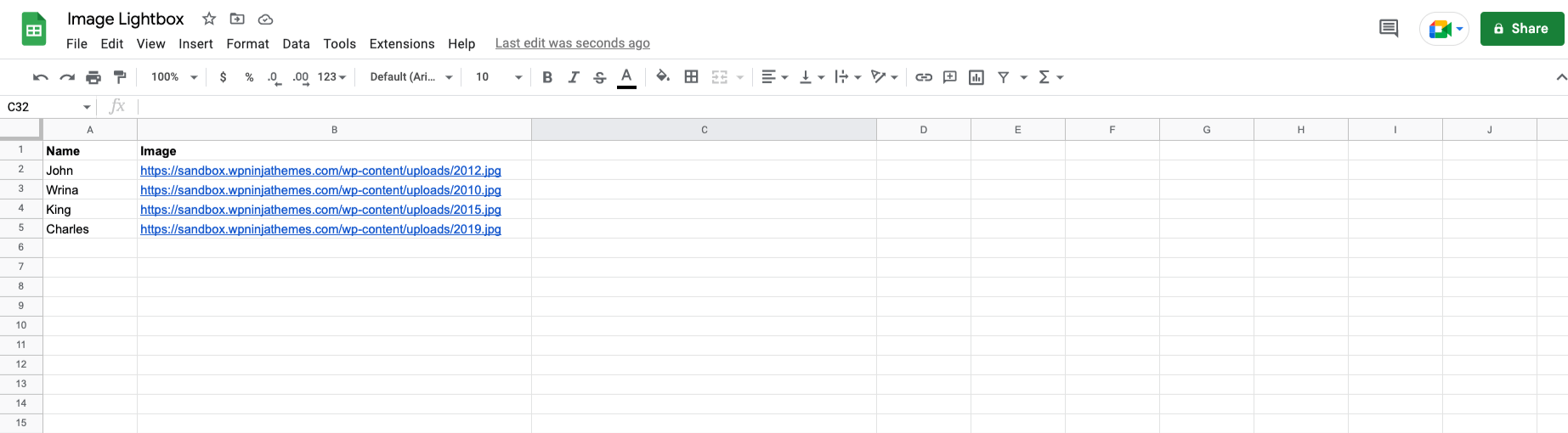
- In the image column, various image links/URL has been added.
- Connect this [Google Sheet](https://ninjatables.com/docs/google-sheets-integration/) to Ninja Tables and the columns will be imported automatically. But the image links won't transform into images and neither open in a lightbox.
- Now to convert this image link into an Image, first navigate to the **Table Configuration **tab. Then click on the **Edit **icon located on the right side of the **Image** column bar. There you will find an option called **[Transform Value](https://ninjatables.com/docs/transform-value/), **click on that.
- In the transform value field, add this code; this is quite a simple HTML code -
```
 ```
- Now turn this image link into an Image. Replace thetext** **inside the quotations with the **Column Shortcode **of the Image column given in the **Transform** **Value** option.
- So the code will ultimately look like this -
```
```
- Now turn this image link into an Image. Replace thetext** **inside the quotations with the **Column Shortcode **of the Image column given in the **Transform** **Value** option.
- So the code will ultimately look like this -
```
 ```
- Then click on the **Update **button to save the code. All the image URLs are shown as an image in the table.
### Image with Lightbox
- To convert this image link into an **Image Lightbox**, add an HTML code in the Transform Value box.
- In the transform value field, add this code; this is quite a simple HTML code -
```
< a href="Image Shortcode" class="nt_lightbox">
```
- Then click on the **Update **button to save the code. All the image URLs are shown as an image in the table.
### Image with Lightbox
- To convert this image link into an **Image Lightbox**, add an HTML code in the Transform Value box.
- In the transform value field, add this code; this is quite a simple HTML code -
```
< a href="Image Shortcode" class="nt_lightbox"> ```
- Now turn this image link into an Image Lightbox. Replace the **Image Shortcode **with the **Column Shortcode **of the Image column given in the Transform Value option.
- A class named **nt_lightbox **also needs to be added inside the anchor tag. This class is used to transform the image URL into an Image Lightbox.
So the code will ultimately look like this -
```
```
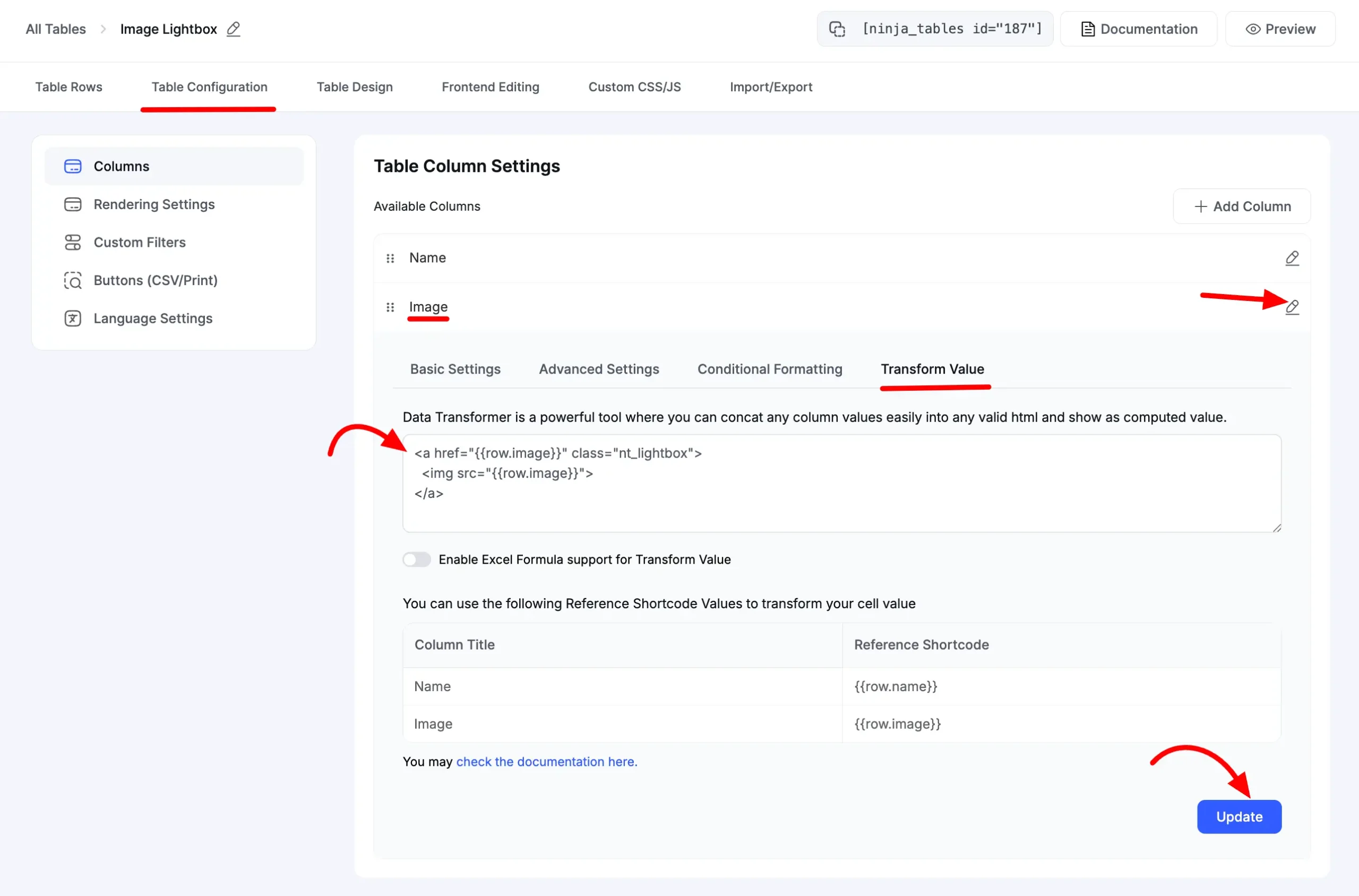
- Then click on the **Update **button to save the code.
- Next, go to the **Table Design **tab **→** click on the **Other **option. Then you will find an input field called **Extra CSS Class for the table**, **add** this class **nt_has_lightbox **here.
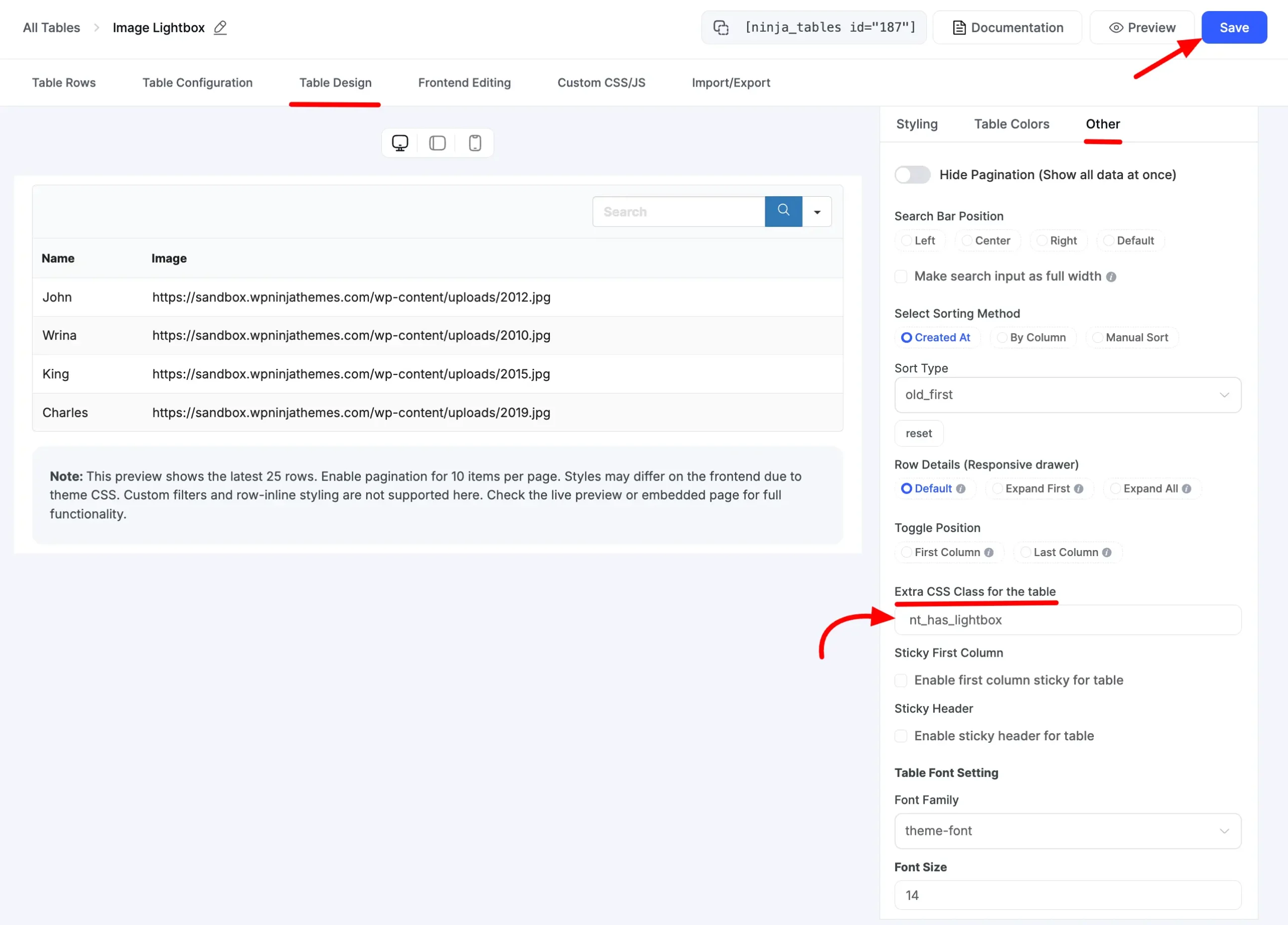
- Lastly, click on the **Save **button to save the settings.
Now if you preview the table, the links from Google Sheets will have transformed into image and will open in a lightbox.
Easily transform image link from Google Sheets into image lightbox in Ninja Tables this way.
```
- Now turn this image link into an Image Lightbox. Replace the **Image Shortcode **with the **Column Shortcode **of the Image column given in the Transform Value option.
- A class named **nt_lightbox **also needs to be added inside the anchor tag. This class is used to transform the image URL into an Image Lightbox.
So the code will ultimately look like this -
```
```

- Then click on the **Update **button to save the code.
- Next, go to the **Table Design **tab **→** click on the **Other **option. Then you will find an input field called **Extra CSS Class for the table**, **add** this class **nt_has_lightbox **here.

- Lastly, click on the **Save **button to save the settings.
Now if you preview the table, the links from Google Sheets will have transformed into image and will open in a lightbox.
Easily transform image link from Google Sheets into image lightbox in Ninja Tables this way.